
We strongly encourage buyers to leave feedback about their orders on Atomic Avenue. To do so, log in to Atomic Avenue and go to My Account > Recent Activity. If you are leaving feedback for a cancelled order or for an order that was placed more than a month ago, click the Cancelled and/or Shipped buttons in the Purchases bar to see all orders. Click on the order number to see the Order page.
The feedback bar is at the top of the page:

Use the Service drop down menu to select a rating of 5 - Fantastic, 4 - Very Good, 3 - Average, 2 - Below Average, or 1 - Poor, and (optionally) include any comments (keeping it short) in the Comments box. Your feedback and comments will appear on the seller's storefront under Recent Feedback for 1 month.

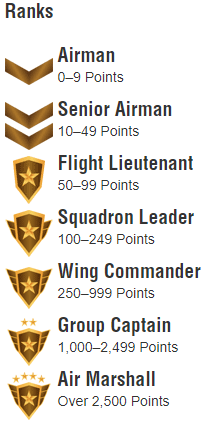
All the ratings the seller has received since beginning to sell on Atomic Avenue set the seller's rank and rating. You can see the seller's average rating on the order page. The seller's rank is determined by the rating for each sale: A rating of 5 is worth 2 points, a rating of 4 or 3 is worth one point, a rating of 2 is worth zero points, and a 1 rating gets you -1 points.
Ranks are as below:
Sellers whose points are less than 0 or who have more than 2 demerits are banned from selling on Atomic Avenue.
-
 1
1
Recommended Comments
There are no comments to display.